Skip to content
Wiki

Writing and formatting

Screenshots use demonstration projects.

Formatting

Format notes with the toolbar, slash menu and Markdown shortcuts.
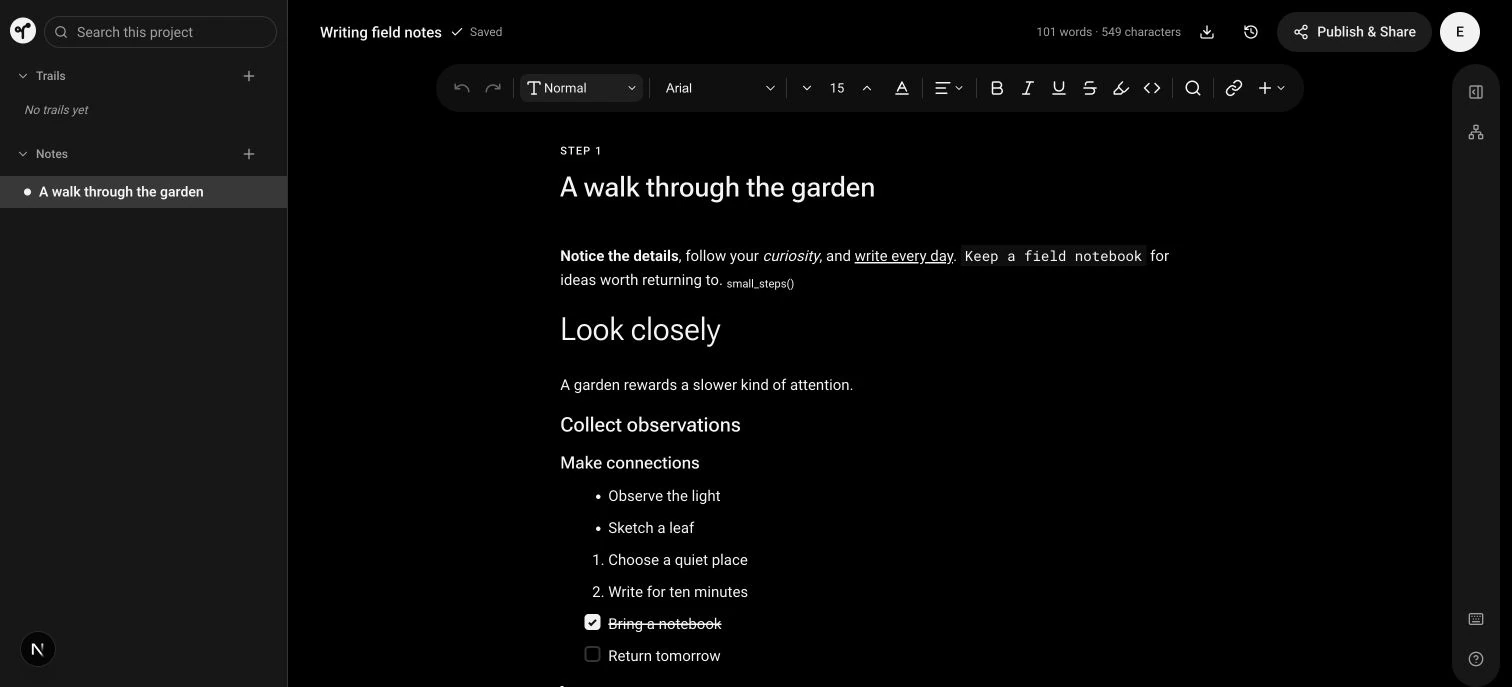
The editor shows its formatting toolbar above a demonstration note with formatted text, headings and lists.
Use the toolbar to format your notes. The slash menu and Markdown shortcuts offer keyboard access while you write.

Slash menu

Type / to find and insert blocks without leaving the note.
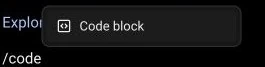
Typing slash code filters the insertion menu to Code block.
Type / at the start of a paragraph, then a block name to narrow the menu. Choose the matching result to insert it.

Move blocks

Reorder content inside a note with block drag handles.

A six-dot drag handle beside a quote, directly above a code block.
Move the pointer beside a block to reveal its drag handle, then drag it to a new position.
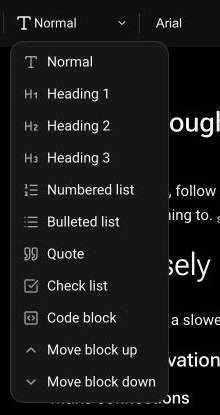
The Text Styles menu including Move block up and Move block down.
You can also move the current block up or down from the Text Styles menu.

Automatic saving

Save note changes automatically and check the editor’s saving or error status.

The project title Writing field notes followed by a checkmark and Saved.
Saved confirms that changes reached the server. If saving fails, check the error and keep the tab open until the draft is safe.