Skip to content
Wiki

Account, privacy and notifications

Screenshots use demonstration projects.

Profile details

Edit your bio, location and website.
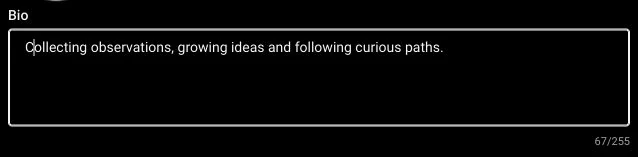
The Bio field in Edit profile contains a short description and a 67 of 255 character counter.
Open Edit profile to write a short bio. Choose Save when you finish editing your details.
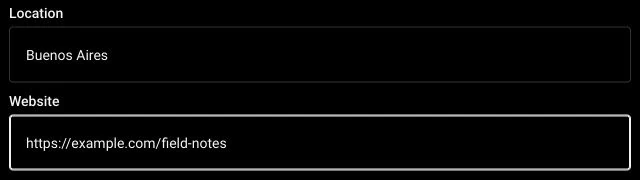
Location is set to Buenos Aires and Website to an example field-notes address.
Location and Website are optional. Use them to add context and a link to your profile.

Profile images

Upload and crop your avatar. Profile images are public.
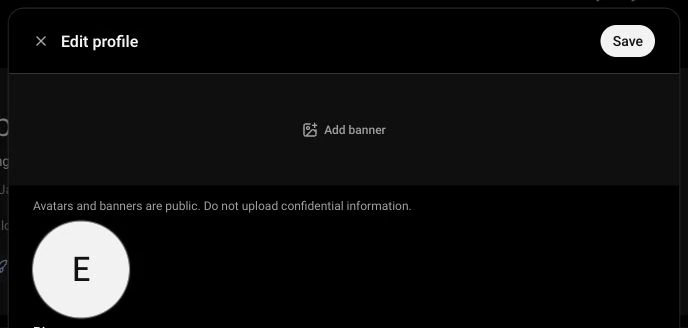
Edit profile shows the avatar control, Add banner and the notice that avatars and banners are public.
Select your avatar to choose a photo, then reposition and zoom it in the crop dialog before choosing Use photo. Save applies the profile changes. Avatars are public.

Age visibility

Choose whether to show your age on your profile.
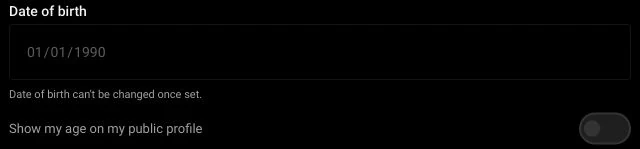
The date of birth is locked and the Show my age on my public profile switch is off.
Your birth date cannot be changed once set. Use the age visibility switch to choose whether your public profile displays your age, then save the change.

Public profiles

Browse an author’s profile, published projects and visible activity.
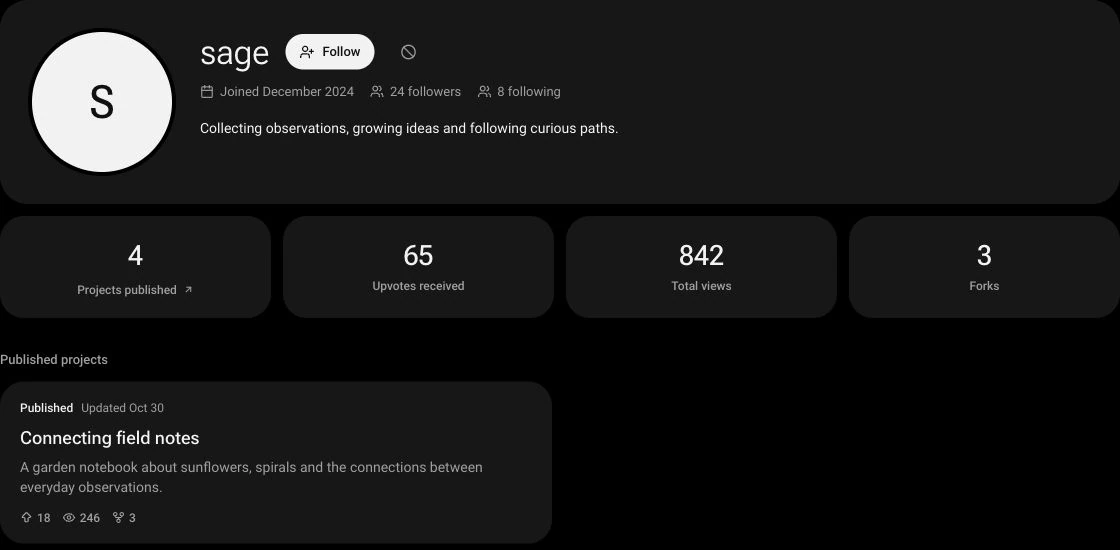
The public sage profile shows its bio, follow controls, follower counts, project statistics and a published project.
Open an author name to browse their public profile, published projects and any activity they make visible.

Personal collections

Revisit your published projects, bookmarks, forks and upvoted projects from your profile.

The profile tabs list Activity, Published, Bookmarks, Forks and Upvoted, with Bookmarks selected and a saved jazz project below.
Choose a collection to revisit your published projects, saved projects, forks or upvotes. Open a project from its row.

Activity history

Review your recent activity on Tramo.
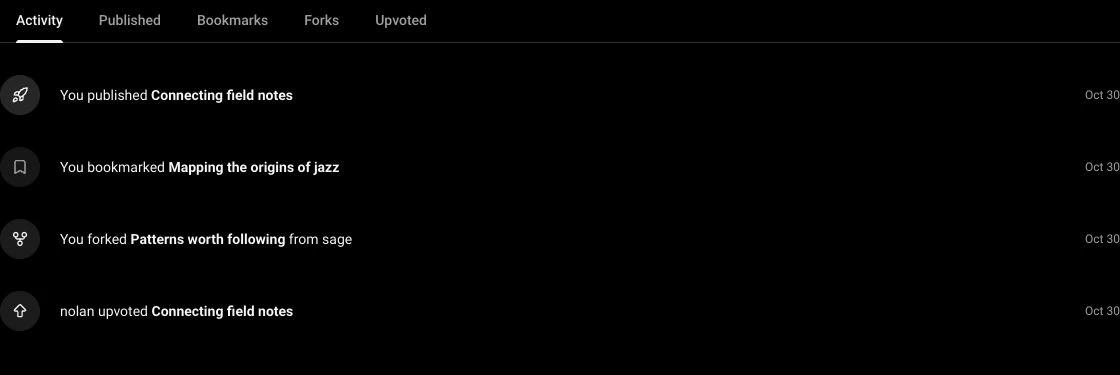
The Activity tab lists publishing, bookmarking, forking and a received upvote, each with a project title and date.
Activity brings your recent actions and interactions with your work into one list. Each project title opens the relevant project.

Badges

View earned badges and select one to display on your profile.
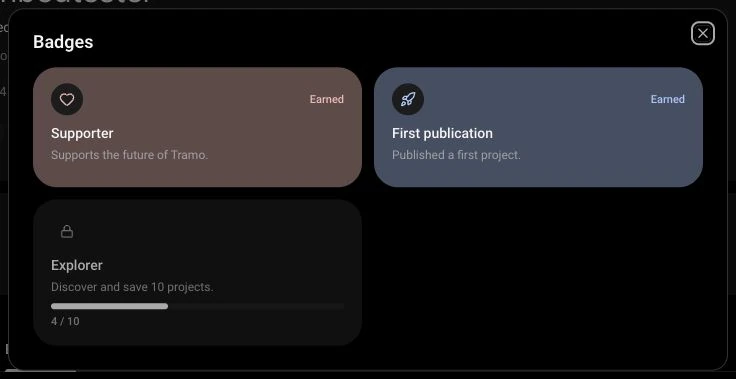
The Badges dialog shows two earned badges and an Explorer badge with progress of 4 out of 10.
Choose View all beside your profile badges to see earned badges and progress toward others.
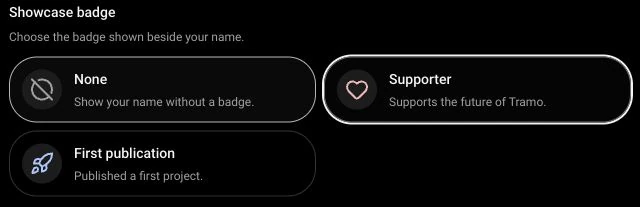
The Showcase badge section in Edit profile has Supporter selected beside None and First publication.
In Edit profile, choose an earned badge to display beside your name. Choose None to hide it, then Save.

Password and recovery

Change your password from Settings > Account. If you forgot it, choose Forgot your password? on Log in to request a reset link by email.
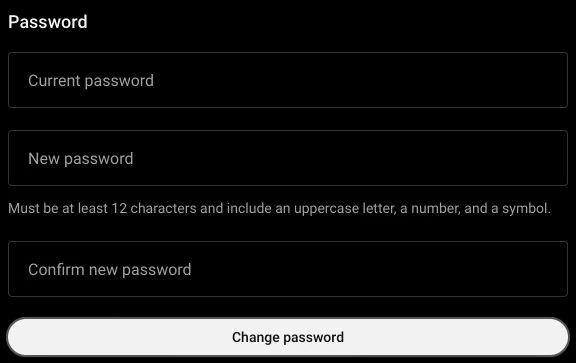
The Password section in account settings has empty Current password, New password and Confirm new password fields, password requirements and a Change password button.
Open Settings, then Account. Enter your current password and confirm the new one. The form shows the required length and character types before you submit.
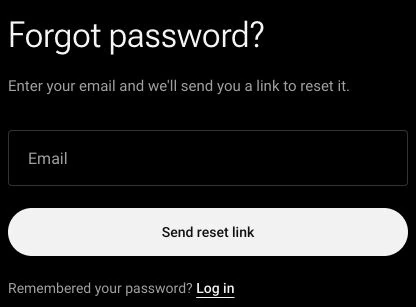
The Forgot password form contains an empty email field, Send reset link button and Log in link.
Choose Forgot your password? from Log in, enter your account email and request a reset link. Follow the link in the email to set a new password.

Delete your account

Request permanent account deletion from the account settings.
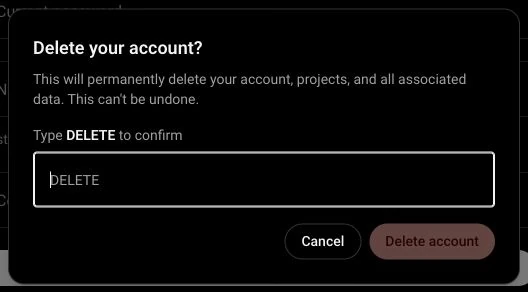
Delete your account confirmation warns that account data and projects will be permanently removed, and asks you to type DELETE before confirming.
In Settings, open Account and choose Delete account. Read the warning before typing DELETE to confirm. Cancel keeps the account and its projects.

Privacy and notifications

In Settings > Privacy, choose a public or private profile independently of project visibility, show or hide your upvotes, allow forks, choose who can comment and manage blocked users. In Settings > Notifications, disable notifications or mute categories such as comments, follows and upvotes. Open the bell for your notification inbox, or use a project or comment menu to report content with a reason.
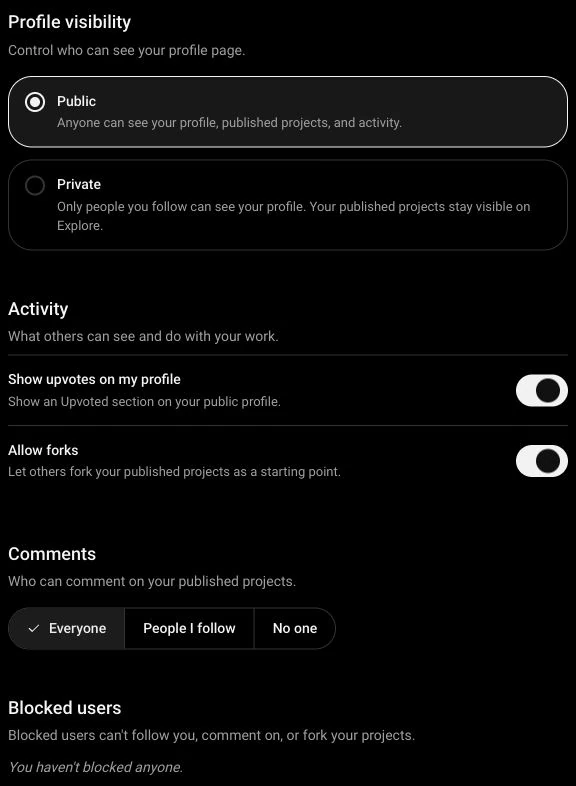
Privacy settings show public and private profile options, switches for upvote visibility and forks, comment permissions and the blocked-user list.
Open Settings > Privacy to manage visibility and permissions. Choose Everyone, People I follow or No one for comments. Notification controls are in Settings > Notifications.