Notes and trails
Screenshots use demonstration projects.
Create and rename notes
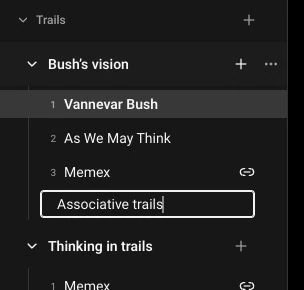
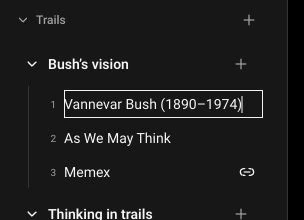
Select the plus beside a trail to add a note as its next step. Enter a title or leave it blank to start with Untitled note. To rename a note, open its three-dot menu and choose Rename note, or edit its title in the editor. In the sidebar title field, Enter saves the name and Escape cancels the change.
Notes outside trails
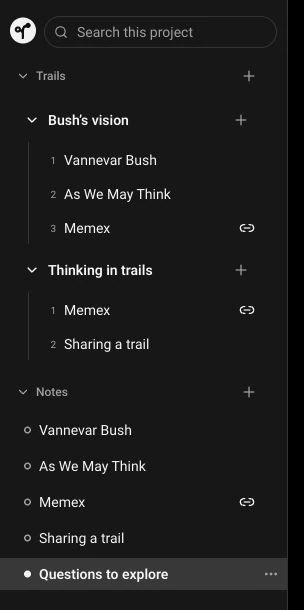
Use the plus beside Notes to create a note without assigning it to a trail. This is useful for open questions, drafts or ideas you want to organize later. The Notes list contains every note in the project, including notes that already belong to trails.
Create and rename trails
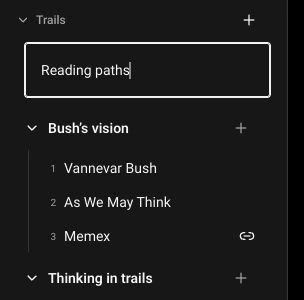
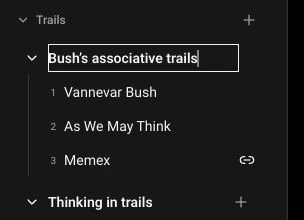
A trail is a named reading order through your notes. Select the plus beside Trails, enter a name and press Enter to create one. Open a trail’s three-dot menu and choose Rename trail to change its name without changing its notes. Escape cancels the title edit.
Reuse a note
Open a note’s three-dot menu inside a trail and choose Add to another trail, then select the destination. From the Notes list, the same action is called Add to a trail. This reuses the original note: edits appear everywhere it is used, while each trail keeps its own reading order. Move to another trail is a different action that takes the step out of its current trail.
Shared-note indicators
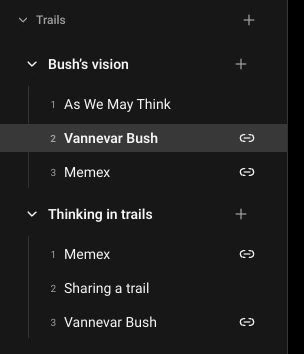
A link icon beside a note title means the note is used in more than one trail. The editor also shows a notice beneath the title, naming the trails that use it. Check this notice before editing: your changes update the same note in every trail.

Add an existing note
Open the destination trail’s three-dot menu and choose Add existing note. Select a note from the dropdown, then choose Add note. The dropdown only offers notes that are not already in that trail. Adding a note here keeps its existing content.

Remove a step
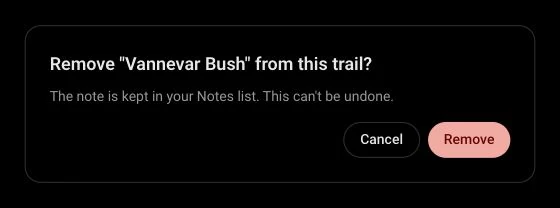
Open the note’s three-dot menu within a trail and choose Remove from this trail. The confirmation names the note and explains that it stays in Notes. Confirm with Remove to take it out of this reading path, or Cancel to leave it in place. Other trails that use the note are unchanged.
Reorder steps
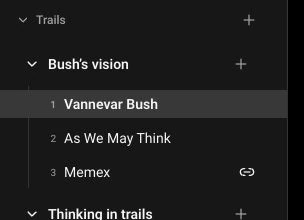
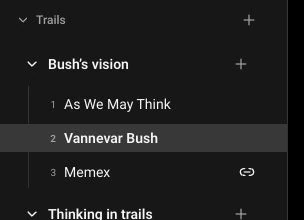
Drag a note to a new position within its trail. You can also open its three-dot menu and choose Move note up or Move note down. The step numbers update to match the new reading order. Reordering a shared note in one trail does not change its position in another.
Delete notes and trails
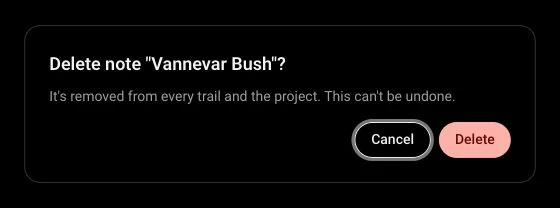
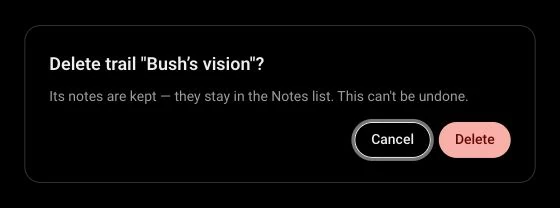
Delete note removes the note from the project and every trail that uses it. Delete trail removes the reading path while keeping its notes in the Notes list and in any other trails. Both actions show a confirmation and cannot be undone. Check the name and description before confirming, or choose Cancel to keep everything.