Skip to content
Wiki

Images and other blocks

Screenshots use demonstration projects.

Image uploads

Insert images into notes through the upload controls.
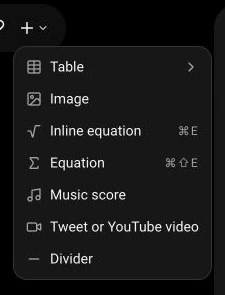
The Insert menu offering Image alongside tables, equations, music, embeds and dividers.
Choose Image from the Insert menu, then select an image file from your computer.

Resize images

Adjust an image’s displayed dimensions in the editor.
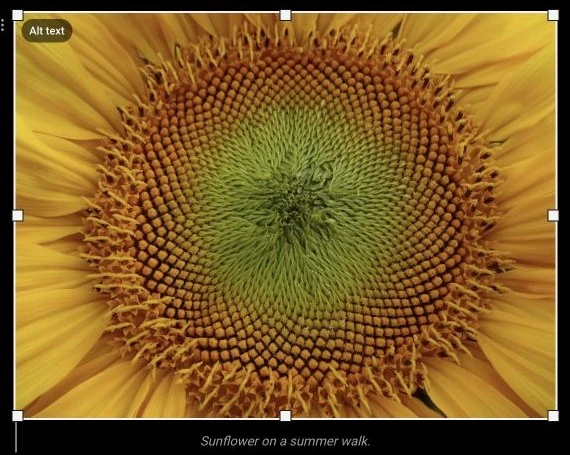
A sunflower photograph surrounded by resize handles on its corners and edges.
Select an image to reveal its handles. Drag a handle to adjust the displayed size.

Captions and alt text

Add a visible caption and an accessible image description.
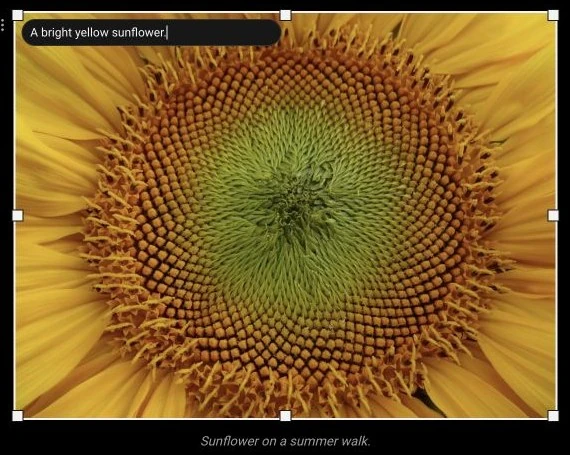
A sunflower photograph with the alt text A bright yellow sunflower and the caption Sunflower on a summer walk.
Use Alt text to describe the image for readers who cannot see it. The caption below the image is visible to everyone.

Equations

Write LaTeX equations inline or as a separate block.
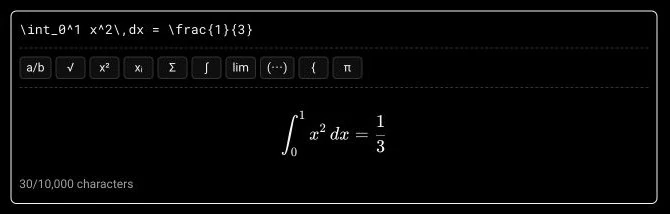
A LaTeX integral in the equation editor, with template buttons, a live rendered preview and a character counter.
Write LaTeX in the source field and check the preview below. Template buttons insert common structures such as fractions and integrals.
A rendered block equation showing the integral of x squared from zero to one equals one third.
The finished equation appears as a block. Choose Inline equation instead to place a formula inside a line of text.

Music notation

Add a music block using ABC notation.
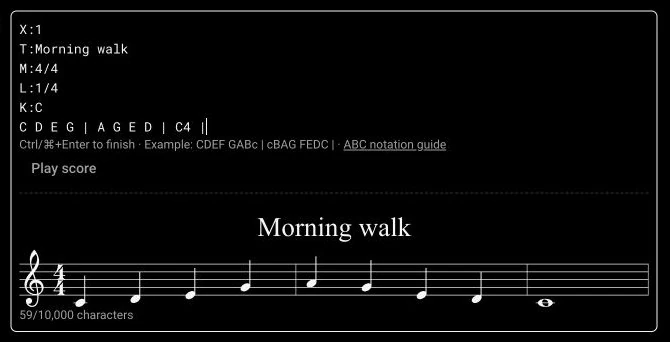
The ABC source for Morning walk above its rendered staff, with a Play score control and character counter.
Enter ABC notation to preview a score. Play score lets you listen; Ctrl/⌘+Enter finishes editing the block.

Embeds

Insert a public YouTube video or X / Twitter post by its URL.
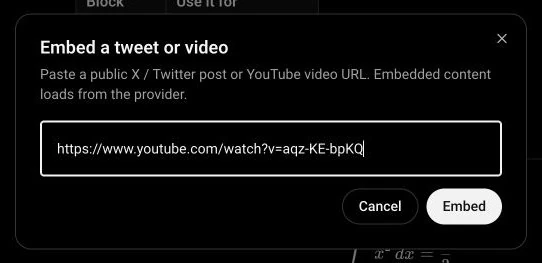
The Embed a tweet or video dialog containing a YouTube URL and Cancel and Embed buttons.
Paste a public YouTube or X / Twitter URL, then choose Embed. The video or post loads from its provider.
